Website powered by

Blender Story: From Zero to Andy's Room | Ep. 2: Mastering Transform Tools in Blender

Tutorial / 01 August 2024
Blender Story: From Zero to Andy's Room | Ep. 2: Mastering Transform Tools in Blender

🌟🌟 Good News! A New Episode is Here! 🌟🌟

We're excited to announce the release of the second episode in MiM Repository's Blender beginner course! This time, we delve into one of the most essential aspects of Blender: the Transform tools. Mastering these tools is crucial for any 3D modeling project. Let’s get started on this exciting journey!

Episode Overview: Transform Tools in Blender

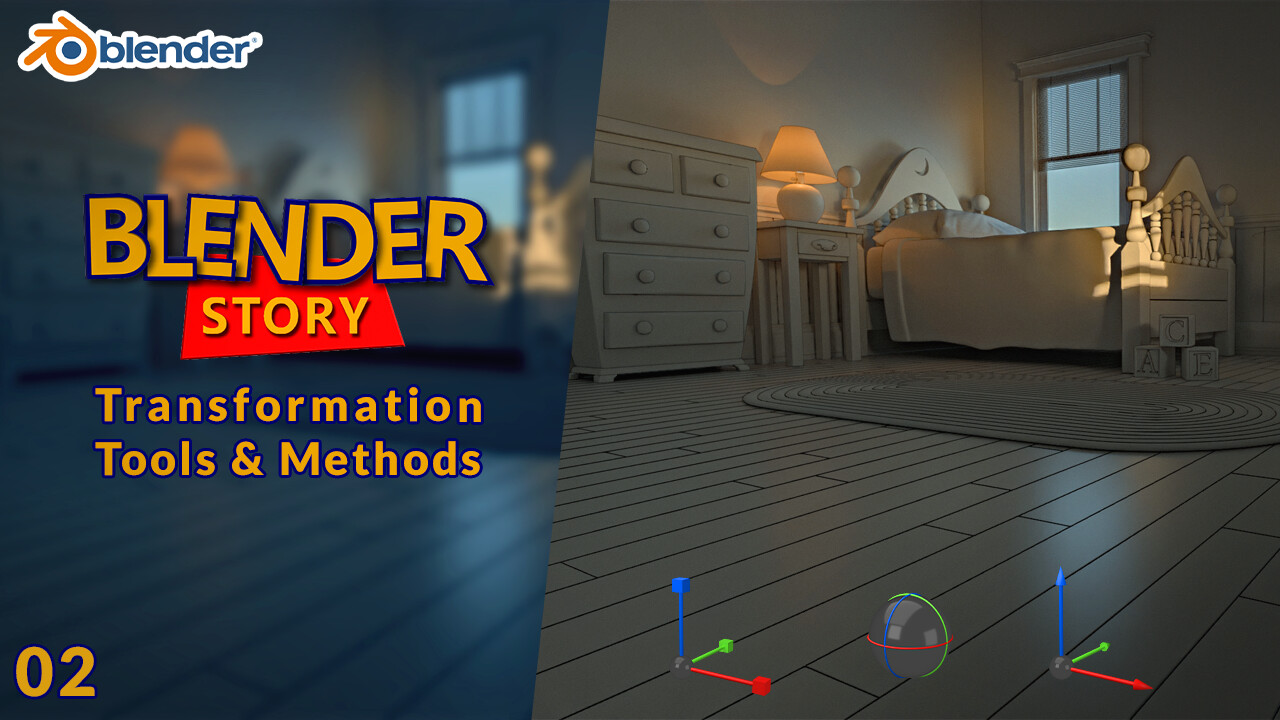
In this episode, we focus on the three main Transform tools in Blender: Move, Rotate, and Scale. These tools are essential for manipulating objects in your 3D scene, and they each come with their own Transformation Gizmo, allowing for precise control along the X, Y, and Z axes.

Get Started Now!
Visit our course on YouTube to begin your journey into the world of 3D modeling with Blender


Visit our course on YouTube to begin your journey into the world of 3D modeling with Blender


🌟 Don’t Miss Out:
đź”´ Subscribe to our channel for the latest updates and new tutorials
đź”´ Follow us on ArtStation for more exciting content and resources

Blender Story: From Zero to Andy's Room | Blender FREE beginner 3D Modeling Course

Tutorial / 27 July 2024

We’re excited to announce that our comprehensive Blender course, Blender Story: From Zero to Andy's Room, is now available for FREE to everyone! Whether you’re just starting out or looking to sharpen your 3D modeling skills, this course will guide you through creating an entire 3D scene using Blender.

Get Started Now!
Visit our course on YouTube to begin your journey into the world of 3D modeling with Blender


🌟 Don’t Miss Out:
Subscribe to our channel for the latest updates and new tutorials
Follow us on ArtStation for more exciting content and resources

Start creating today and join our community of 3D artists! Your creative adventure awaits!


Transform Your Characters with 30 Stylized Beard 3D Assets (IMM Brush) - VOL 01

General / 24 July 2024

Transform Your Characters with 30 Stylized Beard 3D Assets (IMM Brush) - VOL01

Are you tired of spending countless hours sculpting beards for your 3D characters? Do you want to instantly enhance the look of your models with minimal effort? Look no further! Introducing our 30 Stylized Beard 3D Asset Pack (IMM Brush) - VOL 01, the ultimate solution for 3D artists who want to save time and elevate their character designs with professional-quality beards.

Why Choose the 30 Stylized Beard 3D Asset Pack?

  1. Instantly Improve Your Character Designs
    Our pack includes 30 meticulously sculpted, stylized beard models that will add a distinctive touch to any character. Whether you're working on a fantasy game, animated film, or concept art, these beards are designed to fit a variety of styles and themes, helping you create memorable and unique characters quickly.

Witness the Transformation: How a Beard Can Redefine Your Character

Take a look at the GIF below to see the powerful impact a stylized beard can have on a character’s appearance. Each beard style brings a new flair and personality, demonstrating how a simple change can make a character look entirely different!


As you watch, you’ll notice how the character’s overall vibe shifts with each new beard. From rugged and distinguished to playful and unique, each beard style can dramatically alter your character's visual identity and appeal.

This visual showcases the versatility of our 30 Stylized Beard 3D Assets (IMM Brush) - VOL01.

  1. Time-Saving Efficiency
    Stop wasting time on repetitive and tedious beard sculpting. With our Stylized Beard IMM brush pack, you can effortlessly draw and attach the desired beard to your character in just a few clicks. This not only speeds up your workflow but also allows you to focus on other creative aspects of your project.

  2. Versatile and Easy to Use
    Our beard assets come in multiple formats to ensure compatibility with your preferred 3D software:
    • ZBP (for IMM Brush)
    • ZTL
    • OBJ
    • FBX
    • BLEND
      Whether you’re using ZBrush, Blender, or another 3D application, you’ll find these assets seamlessly integrate into your workflow, making them incredibly versatile and user-friendly.
  3. High-Quality Sculpted Designs
    Each beard model is crafted with attention to detail, offering high-quality results that will enhance the realism and stylization of your characters. Our assets are perfect for artists looking to achieve a professional finish with minimal effort.

  4. Ideal for a Range of Projects
    From game development to film production, these stylized beard models are perfect for a variety of projects. Their diverse range of styles means you can find the perfect beard for every character, helping you to deliver top-notch results in less time.


How This Pack Can Benefit You

Save Time and Effort
Eliminate the hassle of sculpting beards from scratch. Our pack provides you with ready-to-use beard models, significantly reducing the time and effort required to achieve high-quality results.

Enhance Your Creative Workflow
Focus more on the creative aspects of your character design while our beards handle the detailing. With our easy-to-use IMM brushes, you’ll streamline your process and enhance your overall workflow.

Achieve Professional Results
Impress your clients, audience, or team with professionally crafted beard designs. Our high-quality assets will help you achieve the look and style you need to make your characters stand out.

Elevate Your 3D Art Projects
Whether you’re a game developer, animator, or 3D artist, our Stylized Beard 3D Asset Pack will take your projects to the next level. With these assets, you’ll deliver visually stunning characters that captivate and engage.

Ready to Transform Your Characters?

Don’t miss out on the opportunity to enhance your 3D character designs with ease. Purchase the 30 Stylized Beard 3D Asset Pack (IMM Brush) - VOL 01 today and experience the convenience and quality that will elevate your work to new heights.

Click here to buy now and revolutionize your character design process with our premium beard assets!

VDM Brush Maker for Blender: Ultimate VDM Brush Creation Suite

Tutorial / 29 May 2024

📣 VDM Brush Maker for Blender: Ultimate VDM Brush Creation Suite 📣

Transform your digital sculpting workflow with the MiM_VDM Brush Maker for Blender! This powerful suite includes three essential tools designed to streamline and enhance your creative process:

1. VDM Exporter for ZBrush

Easily export Vector Displacement Maps (VDM) from ZBrush with our user-friendly script. The MiM_VDM Exporter allows you to batch export VDMs in .EXR format with just a few clicks, supporting mirroring on the X, Y, or both axes. Simplify your VDM export workflow and save valuable time.

2. Blender VDM Setup for Photoshop

Prepare your images for VDM creation in Blender with our convenient Photoshop action. This tool ensures your image channels are correctly set up for optimal use in Blender, eliminating the guesswork and manual adjustments.

3. VDM Brush Maker Addon for Blender

Create custom brushes in Blender using your .EXR files effortlessly. The VDM Brush Maker addon allows you to import .EXR files, set brush properties, and apply custom icons! Whether you're adding fine details or creating complex textures, this addon is your go-to tool for sculpting in Blender.

Why Choose  VDM Brush Maker for Blender?

Unlock the full potential of your digital sculpting with this comprehensive toolset. Ideal for artists, designers, and 3D enthusiasts, the VDM Brush Maker for Blender offers unparalleled flexibility and efficiency. Create stunning, detailed models with ease and precision.

By integrating these tools into your workflow, you'll streamline the VDM creation process, ensuring a more productive and enjoyable sculpting experience. Don't miss out on this essential suite – perfect for both beginners and seasoned professionals.

how it works:


How to Measure Object's Dimensions Like a Pro | MiM Fast Ep.02

Tutorial / 06 November 2023

How to Measure Object's Dimensions Like a Pro | MiM Fast Ep.02

âž–âž–âž–âž–âž–âž–

📏Welcome to the second episode of the MiM Fast series! Discover the power of the Universal Manipulator and Distance Tool to measure object dimensions like a pro.

https://youtu.be/vrxphXoTS_k

đź”” Don't forget to subscribe to MiM-Repository and hit the notification bell to stay updated with our tutorials and product releases!

Illustrator to Maya: Create 3D Objects with Revolve Tool (Step-by-Step Tutorial)

Tutorial / 16 October 2023


Illustrator to Maya: Create 3D Objects with Revolve Tool (Step-by-Step Tutorial)

âž–âž–âž–âž–âž–âž–

Welcome to the MiM Tuts FAST series!  In this comprehensive tutorial, we'll guide you through the seamless process of using Adobe Illustrator to create a profile of objects and then importing them into Autodesk Maya. We'll specifically explore how to leverage the powerful Revolve Tool in Maya to transform these profiles into intricate 3D objects.

Key Points Covered:


    🔵Preparing Illustrator profiles for 3D modeling in Maya.

    🔵Importing Illustrator designs into Maya seamlessly.

    🔵Utilizing the Revolve Tool for creating 3D objects efficiently.

âž–âž–âž–âž–âž–âž–

https://youtu.be/L0nMaEi3jog


hope you like itđź’–

Quad topology sphere in maya 2024_Convert the entire process into a button!

Tutorial / 25 April 2023

Learn how to create a perfect quad-topology sphere in Maya with just one click! Say goodbye to reflection issues on shaders with this easy-to-follow method that utilizes the transfer attribute tool. Follow along as we turn the entire process into a button, making it even faster and more convenient to create stunning spheres in Maya. Don't miss out on this must-see tip! 

➖➖➖➖➖➖ 

Use this Python Code: 

 import maya.cmds as cmds # Create a cube with polySmooth division level 4 cube_name = cmds.polyCube(w=2, h=2, d=2, sx=1, sy=1, sz=1)[0] cmds.polySmooth(cube_name, divisions=4) # Create a sphere with subdivision axis 80 and subdivision height 80 sphere_name = cmds.polySphere(sa=80, sh=80)[0] # Use transfer attributes from sphere onto cube cmds.transferAttributes(    sphere_name,    cube_name,    transferPositions=True,    transferNormals=True,    transferUVs=False,    transferColors=False,    searchMethod=0,  # closest along normal    sampleSpace=1,  # world space ) # Delete the construction history of the cube cmds.delete(cube_name, constructionHistory=True) # Delete the sphere cmds.delete(sphere_name)